
Objective
To outline the steps to upload documents on the Guided Home platform efficiently and accurately.
- You can upload all and any documents you want to share with the customer across their journey. For the customer they have the convenience of all their documents in one place, no more search emails, shared drives or looking for paperwork.
- You can even upload scans from your mobile via the Guided Home app - simply download and login with your work credentials and follow these steps through the app.
- You can also trigger a push notification to go to the resident so they know a new document has been added
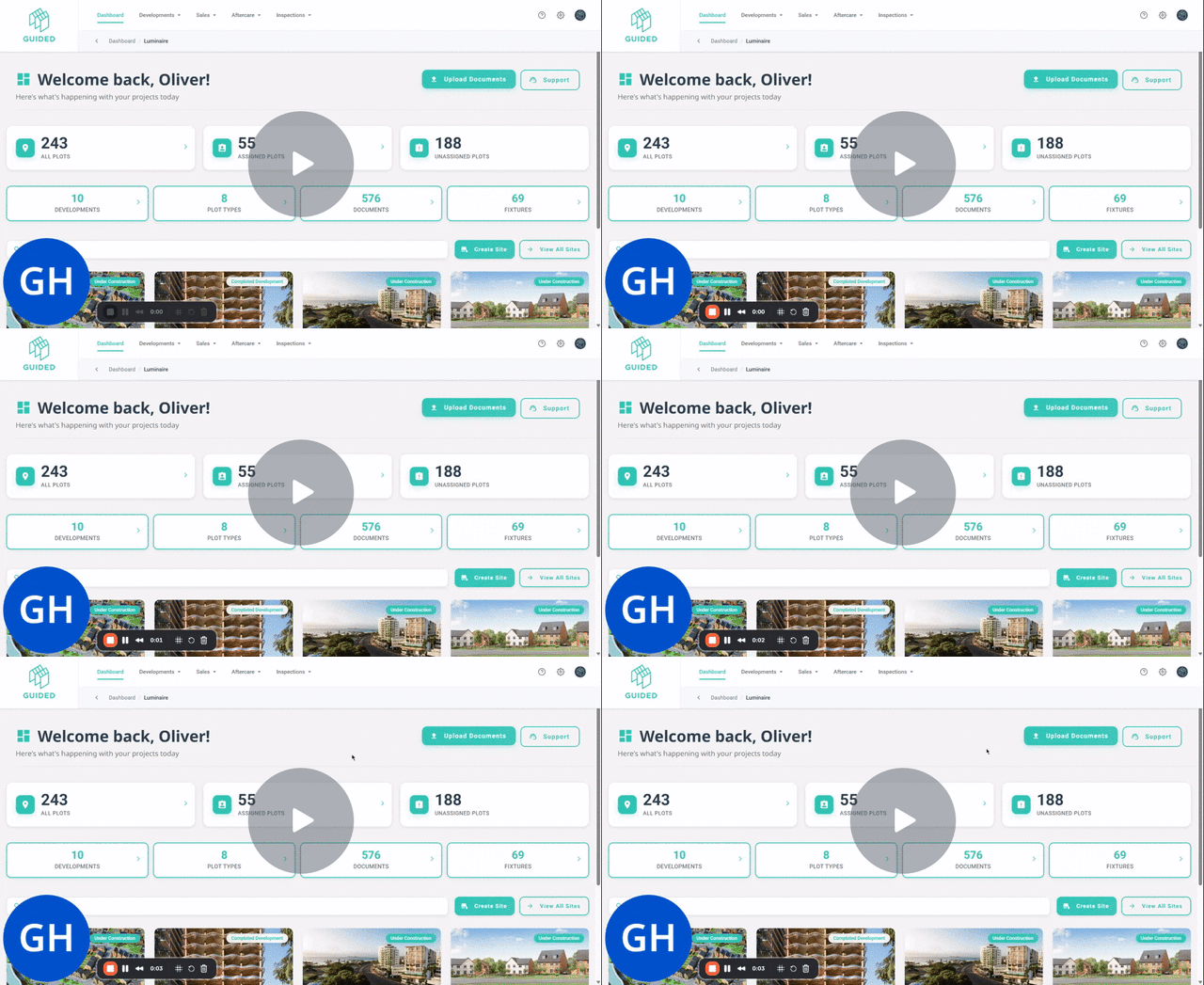
Uploading Documents on Guided: A Step-by-Step Guide - Watch
Key Steps
Step 1: Log In 0:00
-
Log in to the Guided platform using your work email address.
-
Ensure you have the necessary permissions to upload documents.
Step 2: Access Upload Documents 0:00
-
Click on the 'Upload Documents' option on the dashboard.
Step 3: Select Documents 0:00
-
You can either:
-
Click to explore your files, or
-
Drag and drop your documents from Explorer into the upload area.
-
Step 4: Review Document Table 0:16
-
Review the table displaying all uploaded documents.
-
Add any additional details as required.
Step 5: Use Bulk Selector (if needed) 0:16
-
If you have multiple files, use the bulk selector to update files to specific folders.
Step 6: Continue to Next Step 0:28
-
Once satisfied with your selections, click 'Continue' at the top of the page.
Step 7: Notify Plot Owners (optional) 0:36
-
Decide if you want to notify the plot owners about the uploaded documents.
Step 8: Connect Documents to Plots 0:48
-
On the next screen, choose which plots to connect the documents to:
-
Select a whole site,
-
A particular tenor in a site, or
-
An individual plot.
-
-
Use the free text search to quickly find the desired plot.
Step 9: Finalize Upload 1:03
-
Tick the box to confirm your selections.
-
Click 'Next' to save the documents.
Step 10: Close or Upload More 1:03
-
After saving, you can either close the window or proceed to upload more documents.
Cautionary Notes
-
Ensure that all documents are in the correct format before uploading.
-
Double-check that you are connecting documents to the correct plots to avoid errors.
Tips for Efficiency
-
Use the drag and drop feature for faster uploads.
-
Familiarise yourself with the free text search to quickly locate plots.