
Objective
To outline the steps to review and update the home user guide content for a new site before granting customer access.
Ensuring Accurate Home User Guide Content for New Site Access - Watch Video
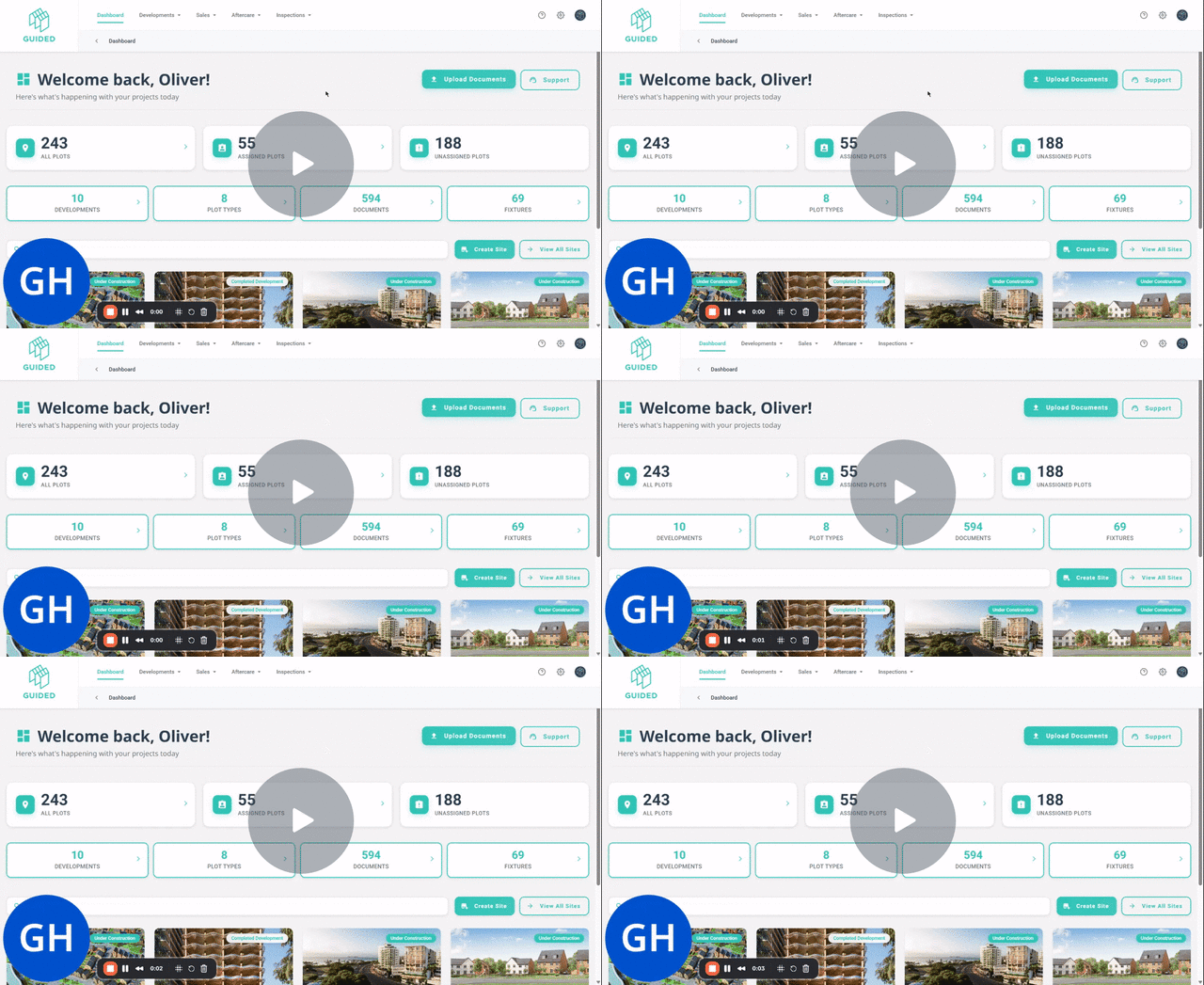
Key Steps
Step 1: Log In and Access Site Cards 0:01
-
Log in to the system.
-
Check the home user guide content for the site to ensure it is accurate and up-to-date.
Step 2: Locate the Site Card 0:11
-
Scroll down to the bottom of the dashboard to find the site cards.
-
If the site card is not visible, use the search function to locate the plot.
Step 3: Navigate to Home Guide Section 0:21
-
Click into the site card to access the tabs.
-
Go to the home guide section.
Step 4: Review Home User Guide Categories 0:32
-
Click into all of the home user guide categories to view the current content.
-
Edit and update the content as necessary.
Step 5: Manage Category Visibility 0:49
-
Use the search bar to pull back relevant categories and cards.
-
Toggle categories on or off to ensure the handover pack is accurate for the location.
Step 6: Edit and Save Updates 1:01
-
Click into each category to check the content.
-
Make any necessary edits and save updates, which will apply to all plots at the location.
Top Tip. Click on the 3 Dots Menu and choose an option:
- Use Template: To review any existing content template, edit and Publish to the relevant sites and plots
- Create Template: To create a new template to use for this category now, and re-use in future across sites
- Edit Content: To make immediate changes to site HUG content displayed (i.e. not using templates)
- Edit Key Contact (where applicable): This will tag relevant key contacts associated to the user guide e.g. customer services or warranty provider information
Step 7: Hide Unwanted Categories 1:09
-
If a category should not be displayed, toggle it off to hide it for that location.
Step 8: Final Review Before Handover 1:22
-
Once all categories have been reviewed, proceed to prepare for handovers.
Cautionary Notes
-
Ensure all updates are saved before exiting the home guide section.
-
Double-check that no important categories are accidentally hidden before customer access is granted.
Tips for Efficiency
-
Familiarize yourself with the search function to quickly locate site cards.
-
Regularly check for updates to the home user guide content to streamline the review process.
What Next?
1. Make plot specific updates and push notifications for individuals plots - via the Aftercare menu > User Guides
2. Create New User Guides: If you would like to add a new user guide - click on '+New Guide Category' button at the bottom
3. View & Update HUG Templates: Create templates if you are going to reuse content across sites in future