
How to Checking Customer Activation & Login Status, Send Password Reset - Watch Video.
- You can find this information in the homeowner's table, where each plot has a corresponding row displaying essential details like the assigner name, assigned date, last login date, and journey status.
- If a customer needs assistance with resetting their password, I show you how to trigger a password reset email directly from this table. It's important to ensure that customers click the activation link they receive via email, set their password and login to their home handover pack.
- Please take a moment to review this process and reach out if you have any questions.
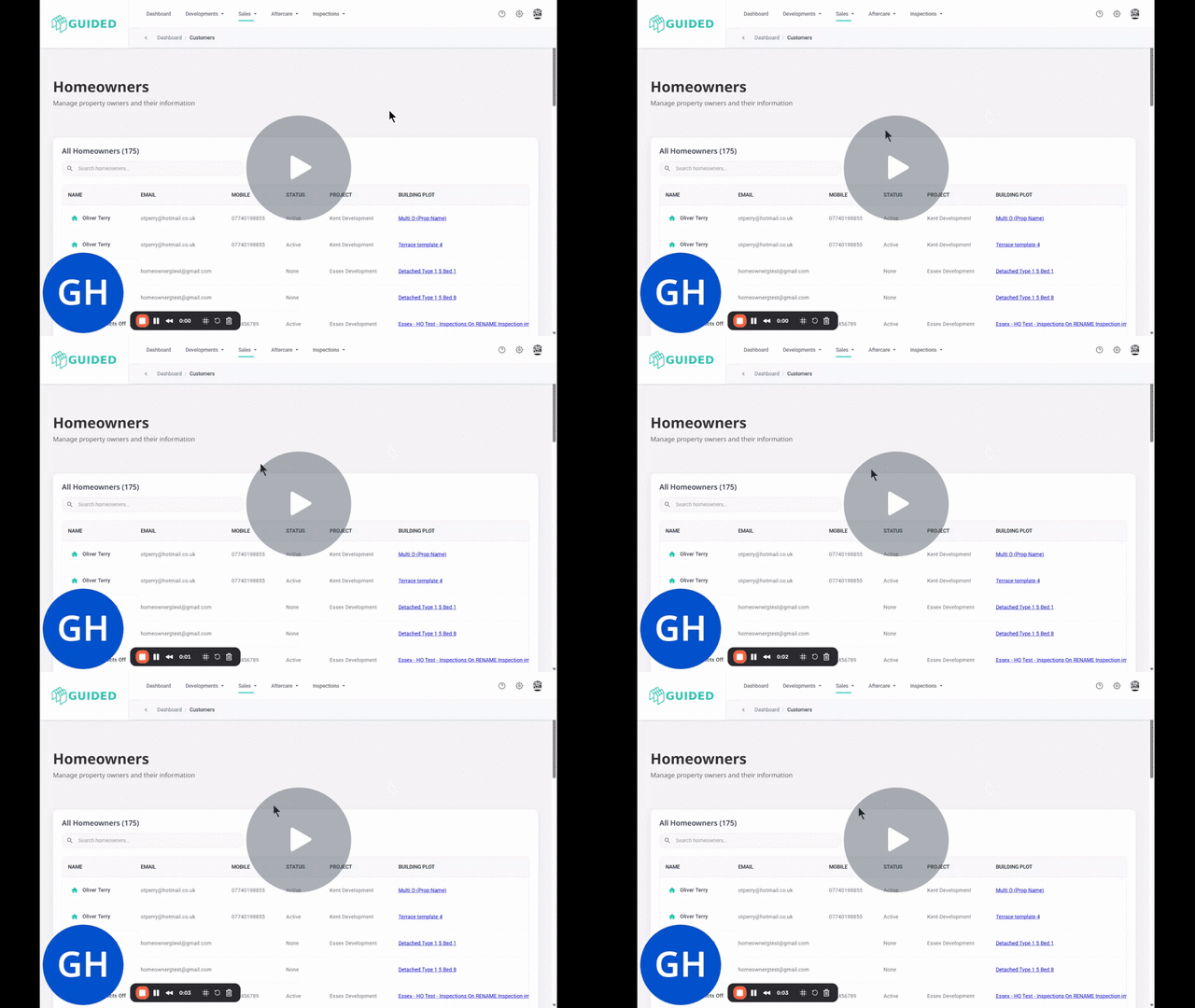
Access the Customer table via:
- Dashboard - Click on the "Assigned Plots" count
- Sales menu > Customers
Key Steps
1. Access the Homeowner's Table 0:00
-
Navigate to the homeowner's table.
-
Locate the row corresponding to the specific plot and customer you are checking.
2. Review Customer Details 0:12
-
Check the details for the selected plot, including:
-
Link to the building
-
Assigner name
-
Assigned date
-
Last login date
-
Journey status.
-
3. Identify Activation Status 0:36
-
Look at the status column to determine if the customer has activated and logged in:
-
If it shows 'registered', the customer has not yet clicked their activation link.
-
4. Assist with Password Reset if Needed 0:28
-
If the customer needs help, trigger the password reset email.
5. Remind Customers of System Updates 0:49
-
Inform customers that they will receive system updates every five days.
Cautionary Notes
-
Ensure that you are checking the correct plot and customer to avoid confusion.
Tips for Efficiency
-
Familiarise yourself with the layout of the homeowner's table to speed up the search process.