
Objective
To outline the steps to view, manage, and assign plots on the Guided Home platform.
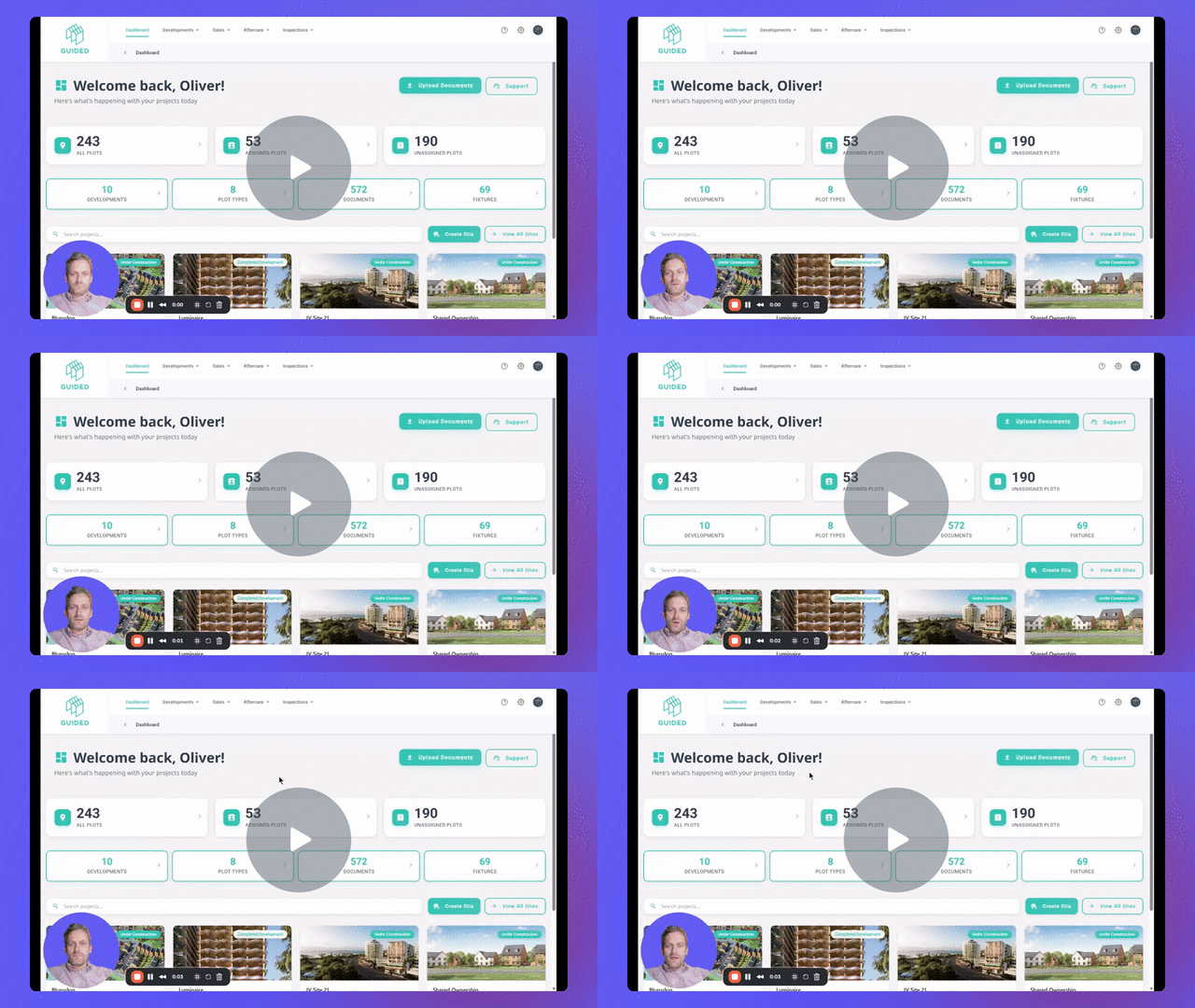
Managing Plot and Customer Handover Process - Watch Video
Key Steps
1. Accessing the Dashboard 0:00
-
Navigate to the Guided Home dashboard.
-
Click on the project site or use the search bar to find the development you are working on.
2. Searching for a Unit 0:18
-
In the project plots tab, search for the unit you are managing (e.g., demo unit).
-
Use the search button to query by name, address, or contact details.
3. Viewing Plot Details 0:41
-
Click on the plot to view details.
-
Check if a customer is assigned to the plot.
4. Managing Plot Information 1:04
-
Scroll through the relevant tabs to see and update content assigned to the home.
-
Review the checklist for outstanding information.
5. Handling Plot Documents 1:13
-
Access plot documents by clicking on them.
-
Upload additional documents as necessary.
6. Managing Inspections and Defects 1:21
-
If applicable, view defects for the plot using the inspections and defect capability.
7. Updating Meter Readings and Appliances 1:30
-
Add meter readings and check the postal address.
-
Manage appliances by adding or removing serial numbers.
8. Granting Customer Access 1:49
-
Click on the 'assign customer' button.
-
Disconnect the plot from the plot type template when prompted.
9. Completing Customer Handover 2:03
-
Choose the service stage for handover (e.g., exchange).
-
Enter customer details and add a second customer if needed.
10. Updating Customer Information 2:35
-
Update building type, tenure, and postal address as necessary.
11. Finalizing Handover 2:55
-
Review and edit meter readings.
-
Click 'next' to complete the handover process.
12. Confirming Assignment 3:12
-
Ensure the customer receives a welcome address and activation email.
-
Check the summary to confirm the unit assignment.
13. Managing Customer Access 3:29
-
View customer details at the top of the screen.
-
Remove access or add another customer as needed.
14. Navigating Back to Site Level 3:54
-
Use the breadcrumb navigation to return to the site level.
-
Search for a different plot to manage.
Cautionary Notes
-
Ensure all customer details are accurate before finalizing the handover.
-
Double-check that all required documents are uploaded to avoid delays.
Tips for Efficiency
-
Use the search bar effectively to quickly locate units.
-
Regularly update plot information to maintain accuracy.
-
Familiarize yourself with the tabs and features available for efficient management.