
Guided Home uses Procore Webhooks to receive notifications when changes to a punch list item occurs. Those notification then enable Guided Home to check for changes to a punch list item and automatically update the status of a punch list item (defect) in Guided.
Once the status has been updated, this will trigger an email alert to the homeowner and be visible in the Guided web app for the homeowner and Developer Admin view.
In order for Guided to use Webhooks within your Procore account, the following is required:
- Log into Procore as an Administrator
- Navigate to the project that you would like Guided Home to receive notifications of punch list item changes
- From Project Tools menu, select Admin:
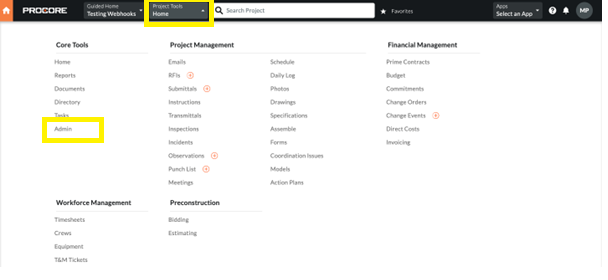
4. On the Project Settings menu on the right-hand side of the screen, select Webhooks:
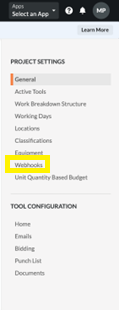
5. On the Webhooks page there is an ENDPOINT CONFIGURATION section (see below). Enter the following information:
- Notification Endpoint: https://guid3d.azurewebsites.net/api/Integration/NotifyProcorePunchItemUpdate
- Authorization Header: 5dd1244a-9178-4909-807f-121d9426cf9a

6. Once entered, select Save Endpoint.
7. After saving, the WEBHOOKS CONFIGURATION section will display. Scroll to near the bottom to section QUALITY & SAFETY and tick the Update column for Punch List Items as per the below screenshot: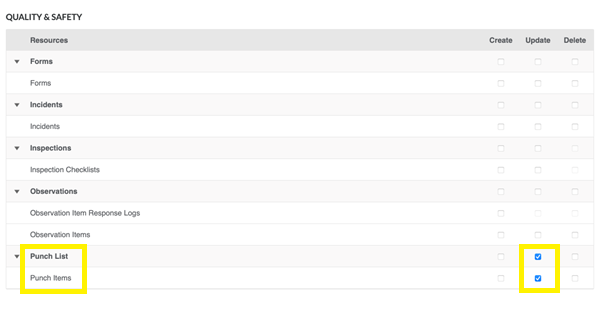
7. Repeat these steps for each project you need to establish a webhook with Guided for Punch List items.
Congratulations - Your Procore and Guided Home defects will now start syncing.
Don't forget to visit the Guided Home Inspections Configuration and setup your Defect Types, Inspections, Priorities and SLAs, and Email Notifications.