
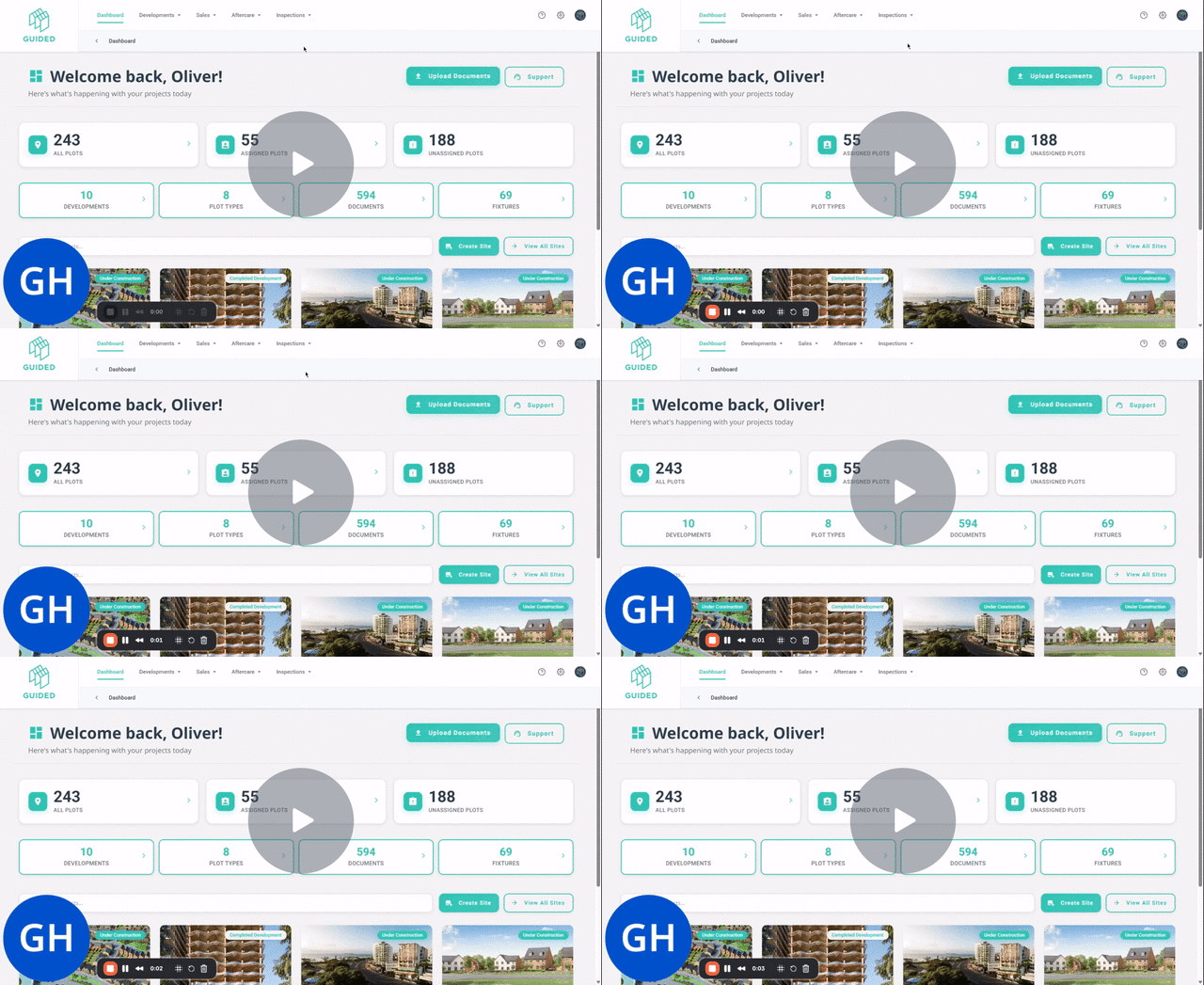
This video shows how to use Guided Home's inspections and defects capability including:
1. How to access the Inspections & Defects Tool 0:00
2. How to configure Defect Email Alerts and Settings 0:12
3. How to raise Defects 0:24
4. How to navigate the Inspections and Defects Tabs 0:38
5. How to search and filter for Defects 1:05
6. How to managing Defects to completion 1:19
Guided Home Inspections and Defects Management Overview - Watch Video
Key Steps
1. Accessing the Inspections Tool 0:00
-
Navigate to the Inspection Actions Menu.
-
Click on the Configurations Tab to access the settings.
2. Configuring Email Alerts and Settings 0:12
-
Turn on the guided inspections tool.
-
Set up the following configurations:
-
Recipients for email alerts.
-
Inspection defect types.
-
Priorities for defects.
-
Associated Service Level Agreements (SLAs).
-
3. Raising Defects 0:24
-
After configuration, you can start raising defects.
-
Use the Inspections Homepage to view statistics:
-
Total number of defects.
-
Defects created categorized by age buckets, including the critical 28-day mark.
-
4. Navigating the Inspections and Defects Tabs 0:38
-
On the Inspections Tab, view each inspection and its associated plots.
-
On the Defects Tab, see a complete list of all defects based on:
-
Keywords.
-
Plot information.
-
5. Filtering Defects 1:05
-
Use filters to control the view of defects based on:
-
Specific inspections.
-
Age buckets.
-
Assigned personnel.
-
Defect status.
-
6. Managing Defects 1:19
-
Click on a defect to view its details.
-
Manage the defect by:
-
Editing its status.
-
Assigning it to a defect owner.
-
Sending updates to the resident at any point.
-
Cautionary Notes
-
Ensure all configurations are set correctly to avoid missing alerts.
-
Regularly check the status of defects to ensure timely resolution.
Tips for Efficiency
-
Familiarise yourself with the filtering options to quickly find relevant defects.
-
Regularly review the inspections homepage for an overview of defect statistics and trends.